Adjust your mobile website version
SendPulse's website builder automatically adapts your website for desktop, tablet, and mobile devices. You can edit elements, columns, sections, and blocks for each version independently to ensure that your content stays readable and well-aligned on any screen.
Let’s talk about how to switch between website versions, adjust styles and fonts, and hide elements on specific devices.
Overview
The website builder supports devices, each with a different screen resolution:
| Desktop | More than 993px |
| Tablet | 481px to 992px |
| Mobile | 480px and less |
To switch between versions, open an element's settings and click the desktop, tablet, or mobile icon at the top.
By default, your page uses responsive design, and your desktop styles are synced to the tablet and mobile versions. To style a version independently, switch to it and turn off the Styles are synced toggle.
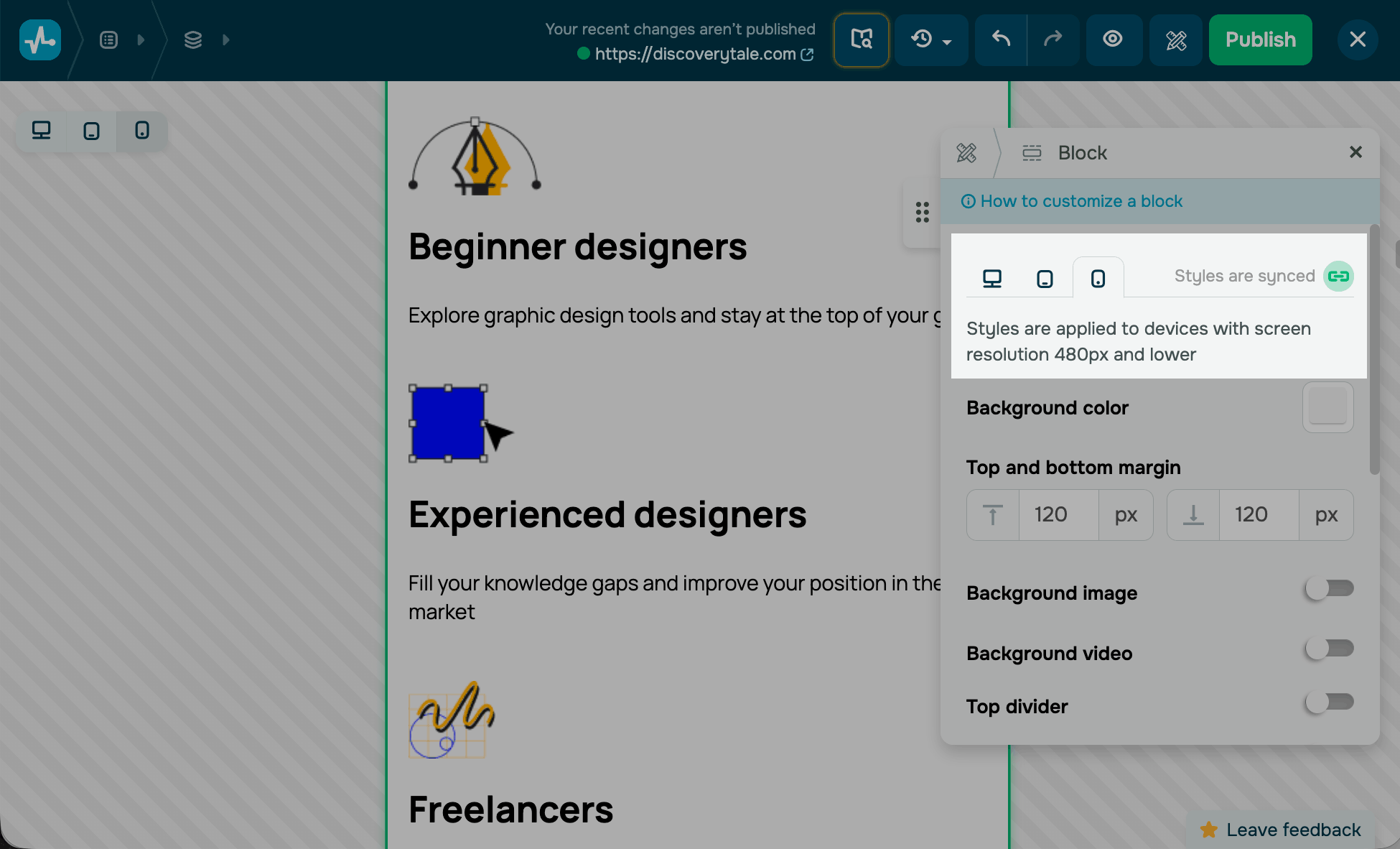
After you select a device version, adjust its element sizes and alignment for an optimal display on that device. Depending on the element, you can edit its alignment (left, right, or center), height, padding, rounding, background color, and background image.
To preview the result, switch between device versions using the switcher in the upper-left corner and compare how your website looks on desktop, tablet, and mobile.
Adjust fonts
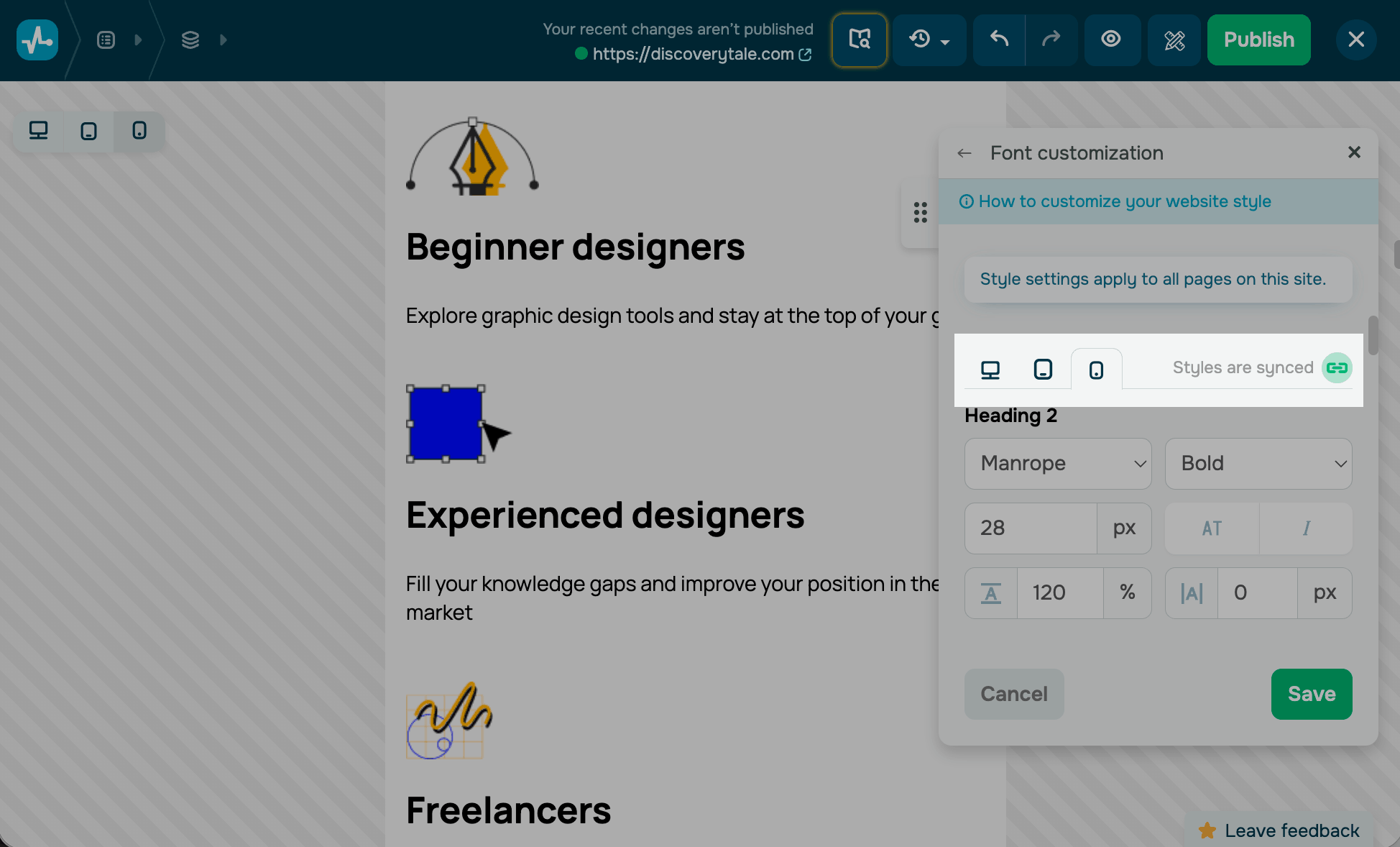
To edit fonts for a device version, go to your page style and click Customize next to your fonts. Click the icon to turn off synchronization, then adjust the heading, body text, and button text styles for the selected version.
Hide blocks and widgets
You can hide a block or a widget on a specific device version to optimize content display, speed up page loading, and improve the user experience on smaller screens.
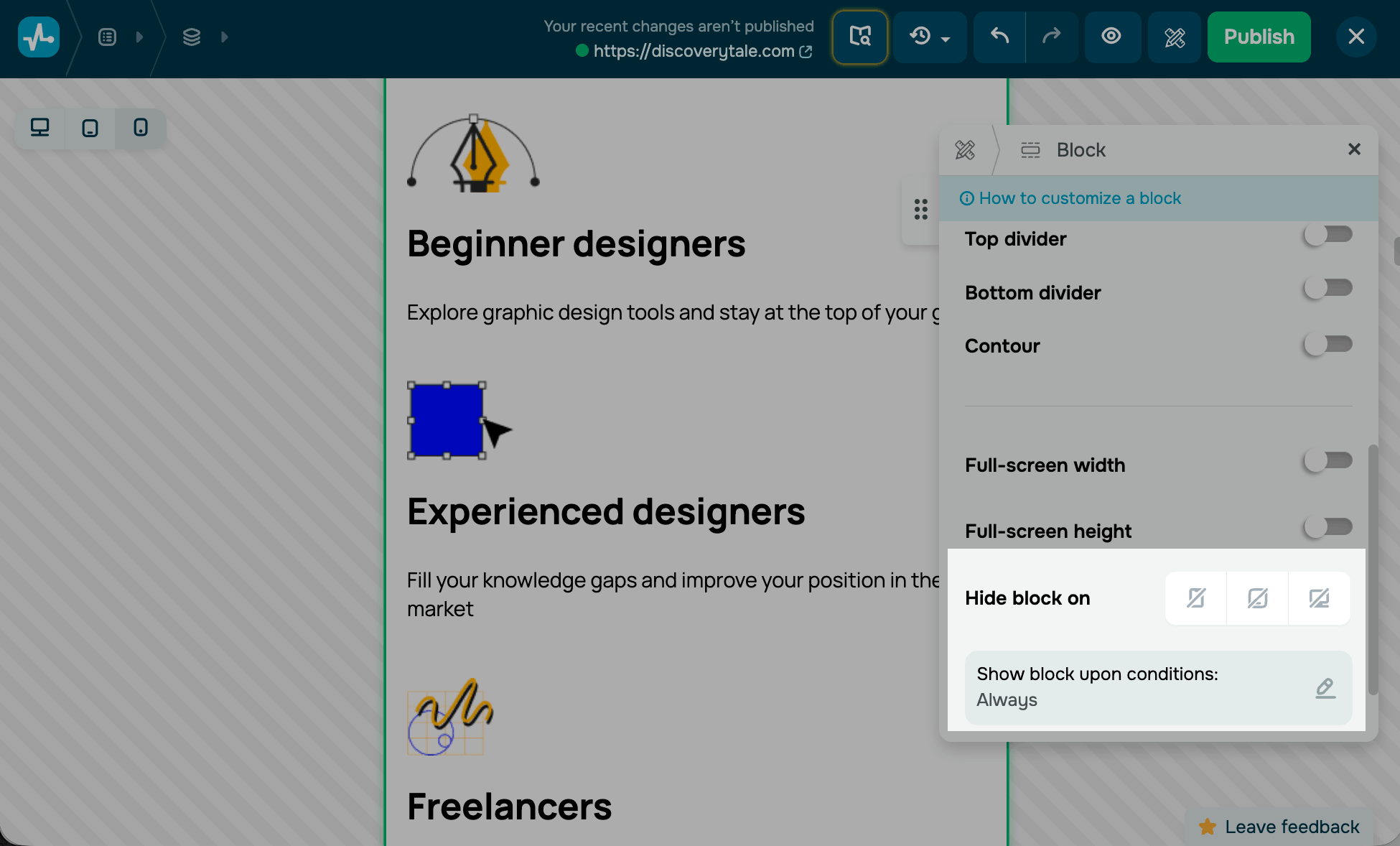
To hide a block with all its elements, go to the block settings, and in the Hide block on field, select the device version on which to hide it — desktop, tablet, or mobile.
You can also set other element display conditions. Read more: Show blocks based on conditions.
Last Updated: 28.10.2024
or